Foglight MCP Server
The Foglight MCP Server enables integration between Foglight and AI-powered development tools through the Model Context Protocol (MCP). This allows developers and administrators to interact with Foglight monitoring data directly from MCP-compatible AI clients, such as VS Code with GitHub Copilot, Cursor, Claude Desktop, or ChatGPT.
This section covers the following key areas:
- Overview
- Architecture
- Before You Start
- Configuring Your AI Client
- Signing In
- Validating the Connection
- Troubleshooting
- Current Limitations
- Frequently Asked Questions
Overview
This section explains what MCP (Model Context Protocol) is and what the Foglight MCP Server provides. It is written for readers who are already familiar with Foglight concepts (FMS, agents, alarms, PI/Performance Investigation, Top SQL), but are new to MCP.
What is MCP?
MCP (Model Context Protocol) is an open protocol that lets an AI client (for example, an assistant built into an IDE or chat tool) call tools exposed by a server.
In practice, MCP provides:
- A standard way for an AI client to discover what tools are available
- A standard way to call those tools with parameters
- A standard way to return results back to the AI client (usually as structured JSON)
Think of MCP as a “connector” layer between an AI assistant and operational systems like Foglight.
Why Use MCP with Foglight?
Foglight already contains rich monitoring and performance data. MCP makes that data easier to use in interactive workflows where you want to:
- Ask questions in natural language (for example: “What are the top SQL statements by impact?”)
- Retrieve supporting evidence quickly (alarms, Top SQL, PI breakdown)
- Drill down iteratively without manually switching between many screens
MCP does not replace the Foglight UI. It provides a programmatic interface that AI clients can use to help you navigate Foglight data faster.
What Does the Foglight MCP Server Provide?
The Foglight MCP Server is an MCP server that exposes Foglight data through a set of tools.
Typical capability areas include:
| Capability | Description |
|---|---|
| Alarms | Get current and historical alarms, and summary statistics |
| Agents and infrastructure | List monitored agents and agent managers |
| Database Performance Investigation (PI) | Instance list, highlights, resource breakdown, top queries |
| TopSQL (cross-database) | Top statements across domains ranked by impact and other metrics |
| Topology / GraphQL | Execute GraphQL queries for advanced topology/metric access |
Exact tool names and parameters depend on the server build and deployment configuration, but the usage pattern is consistent.
Tool Categories
Alarms
Use these when you want to answer “What is wrong right now?” or “What happened last week?”
Examples of questions you can ask:
- “Show me current critical alarms.”
- “Do we have any active alarms for this target?”
- “What are the longest-running alarms right now?”
- “Show alarms created in the last hour.”
- “Give me an alarm summary grouped by agent.”
Agents and Agent Managers (FglAM)
Use these when you want to understand what Foglight is monitoring and whether collection infrastructure looks healthy.
Examples of questions you can ask:
- “List monitored agents (active vs inactive).”
- “Show agents for domain MSSQL (or POSTGRES, ORACLE).”
- “Which agent managers are disconnected?”
- “How many agents are connected to each agent manager?”
- “Is this agent active?”
Performance Investigation (PI)
Use these when you want to diagnose database performance.
Examples of questions you can ask:
- “Show PI highlights for this database instance.”
- “Where is this database instance spending time (CPU vs Lock vs I/O)?”
- “Show top SQL by I/O on this database instance.”
- “Show top SQL by Lock on this database instance.”
- “Show blocking history for this database instance.”
- “Show top users or top databases by workload on this database instance.”
TopSQL (Cross-Database)
Use this when you want the most impactful statements across all monitored databases.
Examples of questions you can ask:
- “Show top SQL across all databases by impact.”
- “Show top SQL for domain MSSQL.”
- “Show top SQL for this target.”
- “Get full SQL text for the top statement (if available).”
Topology / GraphQL
Use GraphQL when you need access to Foglight topology properties/metrics not covered by the higher-level tools.
GraphQL queries require correct Foglight topology field names. Many deployments use a workflow like: search schema for the right fields, generate a GraphQL query, then execute the query.
Examples of questions you can ask:
- “Show CPU utilization for this host.”
- “Show DBSS wait statistics for this database instance.”
- “Find the topology property/metric name for ‘cpu’ in the SQL Server domain.”
Architecture
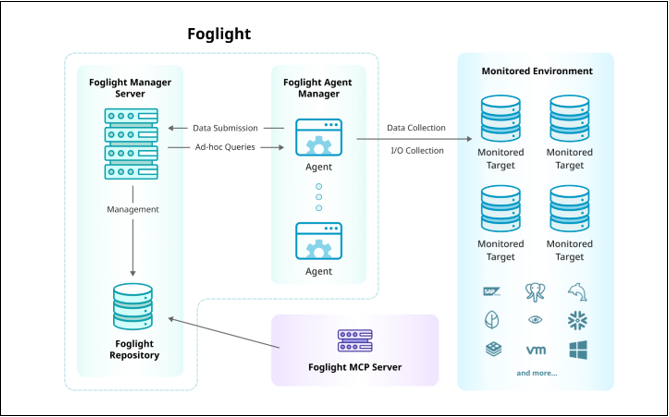
Foglight Cloud uses a standard monitoring model: agents collect telemetry from monitored resources and send it to Foglight Cloud, which processes, correlates, alerts on, and reports the data. A typical environment includes:
- Foglight Cloud (the managed monitoring platform)
- Foglight Agent Manager
- Foglight agents
- Monitored targets, such as databases, hosts, middleware, and cloud resources
- The monitoring repository and data services
The Foglight MCP Server runs above this platform and exposes selected functionality through MCP tool calls. In Foglight Cloud, the MCP Server is hosted and managed for you, so there’s nothing to install or maintain. You connect your AI client directly to the managed MCP Server endpoint over Streamable HTTP. Foglight remains the operational monitoring and control layer, while the MCP Server provides a controlled interface for AI-assisted access.
The following diagram shows how the Foglight MCP Server fits into the Foglight monitoring platform.
Before You Start
Authentication
- Foglight MCP Server tools are intended for read-only retrieval of monitoring and performance data.
- Authentication is based on OAuth2. You need to authenticate to Foglight Cloud to get access.
- The server should be accessed according to your organization’s security policies.
Prerequisites
Before you start, ensure you have the following:
| Requirement | Description |
|---|---|
| Visual Studio Code | Install Visual Studio Code |
| Foglight MCP endpoint | Access to your Foglight MCP endpoint: https://<FOGLIGHT_MCP_ENDPOINT>/mcp |
| Foglight Cloud account | A Foglight Cloud account with permission to access Foglight Server |
Configuring Your AI Client
The Foglight MCP Server supports any MCP-compatible AI client that can connect over HTTP. Below are configuration examples for the most common clients.
VS Code (GitHub Copilot)
To add the MCP server to VS Code:
- In your workspace, create or open the file
.vscode/mcp.json. - Add a server entry that points to your Foglight MCP endpoint:
{
  "servers": {
    "foglight-mcp-sso": {
      "type": "http",
      "url": "https://<FOGLIGHT_MCP_ENDPOINT>/mcp"
    }
  }
}
Do not add any extra credential prompts unless instructed for your environment. Keep the URL exactly as provided for your environment.
Cursor
Create or edit .cursor/mcp.json (project scope) or ~/.cursor/mcp.json (global scope):
{
  "mcpServers": {
    "FMS MCP Server": {
      "type": "http",
      "url": "https://<FOGLIGHT_MCP_ENDPOINT>/mcp",
      "auth": {
        "CLIENT_ID": "foglight-mcp",
        "scopes": ["openid", "profile", "email"]
      }
    }
  }
}
Authentication is handled via OAuth2. When you first connect, Cursor opens the identity provider login page automatically.
Claude Desktop
Open claude_desktop_config.json via Settings > Developer > Edit Config and add:
{
  "mcpServers": {
    "FMS MCP Server": {
      "url": "https://<FOGLIGHT_MCP_ENDPOINT>/mcp"
    }
  }
}
Save the file and fully restart Claude Desktop. The Foglight tools will appear under the hammer icon in the chat input.
ChatGPT
ChatGPT supports MCP servers over HTTP only. The Foglight MCP endpoint must be reachable from the internet.
ChatGPT MCP support requires developer mode and is available for Pro, Plus, Business, Enterprise, and Education plans (web only). See Developer mode and MCP apps in ChatGPT for prerequisites and plan-specific details.
To connect:
- Enable developer mode in Settings → Apps → Advanced settings.
- Click Create app and enter:
- Name:
foglight-mcp - MCP Server URL:
https://<FOGLIGHT_MCP_ENDPOINT>/mcp - Authentication:
OAuth
- Name:
- Under Advanced settings, select User Defined OAuth Client and configure the OAuth endpoints for your identity provider (Auth URL, Token URL, client ID
foglight-mcp, default scopesopenid,profile,email). - Click Create.
- In a new chat, select Developer Mode from the + (tools) menu and choose the Foglight app.
For the full OAuth configuration fields, publishing workflow, and admin controls, refer to the OpenAI MCP documentation and ChatGPT developer mode guide.
Signing In
When you use a Foglight MCP tool for the first time, VS Code opens an interactive sign-in flow automatically.
To sign in:
- In VS Code, try a Foglight MCP tool call (for example, “show current alarms”).
- If you are prompted to sign in, complete the browser sign-in.
- If prompted to provide a client ID, enter
foglight-mcp. - If asked to provide an OAuth client secret, leave blank.
- Run the tool call again after sign-in completes.
Validating the Connection
To validate that the MCP server is working correctly, try one of these simple read-only checks in your AI client:
- “Show current alarms”
- “List monitored agents”
- “Show top SQL across all databases by impact”
If SSO is working, you should receive results after signing in.
Troubleshooting
This section provides solutions for common issues when connecting to the Foglight MCP Server.
401 Unauthorized Error
Cause
This error typically occurs when:
- You are not signed in via SSO for this endpoint
- Your account is not authorized for Foglight MCP
- The endpoint URL is incorrect (missing
/mcpor wrong host)
Resolution
- Open
https://<FOGLIGHT_MCP_ENDPOINT>/mcpin a browser and confirm you can sign in. - If the browser sign-in works but VS Code still fails, contact your support channel for Foglight MCP access.
403 Forbidden Error
Cause
Your user or group is not allowed to access Foglight MCP.
Resolution
Request access to the Foglight MCP application/role in your IdP.
Tools Return Empty Results
Cause
This issue typically occurs when:
- There is no data for the requested timeframe
- The requested domain/instance is not being monitored or PI is not enabled
Resolution
- Try a broader query (for example, “top SQL across all domains”).
- Confirm the target is monitored in Foglight.
OAuth Redirect URI Rejected (HTTP 400)
Cause
During OAuth sign-in, your AI client sends a redirect URI back to the identity provider (for example, Keycloak). Each client uses its own native callback URI. If that URI is not registered as an allowed redirect URI on the foglight-mcp OAuth client, the identity provider rejects the request with:
HTTP 400 — Invalid parameter: redirect_uri
Resolution
Contact your Quest account manager and request that your AI client’s redirect URI be added to the allowed redirect URIs for the foglight-mcp OAuth client. Include the following in your request:
- The exact redirect URI your client sends (check your client’s documentation or error logs)
- The Foglight MCP Server endpoint you are connecting to
No wildcard is needed — provide the exact URI.
Current Limitations
The following capabilities are not currently supported by the MCP Server:
- Ability to retrieve details from ad-hoc queries run by Foglight (such as show current sessions)
- PI (Performance Investigator) information for:
- Oracle databases
- MySQL databases
- SQL Server Analysis Services (SSAS) domains
These limitations may be addressed in future releases.
Frequently Asked Questions
Does MCP mean Foglight data is sent to a public AI service?
Not necessarily. MCP describes how an AI client calls tools. Where the AI model runs and what data is shared depends on your deployment and the client configuration.
Should I use GraphQL for everything?
Usually no. Prefer the higher-level tools (Alarms, PI, TopSQL) for common operations. Use GraphQL for advanced/custom data retrieval.
What if a tool returns an ID or compressed SQL text?
That is expected in some workflows. Use the returned IDs to call the next tool in the chain. Use the decompress tool when a response provides compressed/encoded SQL text.

