Using Foglight AI Insights
This section covers how to use Foglight AI Insights to monitor, analyze, and optimize your database and infrastructure environment. Learn how to ask questions, interact with the chat interface, and get the most out of your AI insights.
This section covers the following key areas:
Before using Foglight AI Insights, ensure you are logged in to QTDMP with appropriate permissions. See Getting Started with AI Insights for login and access requirements.
Accessing AI Insights Chats
The AI Insights Chat allows you to interact with Foglight AI Insights through a conversational interface. Ask questions about your database performance, get insights, and receive recommendations using natural language queries.
To use Foglight AI Insights Chat:
- Log in to QTDMP at https://data.quest.com
- Navigate to Foglight > AI Insights Chat
- Start asking questions about your database performance and infrastructure.
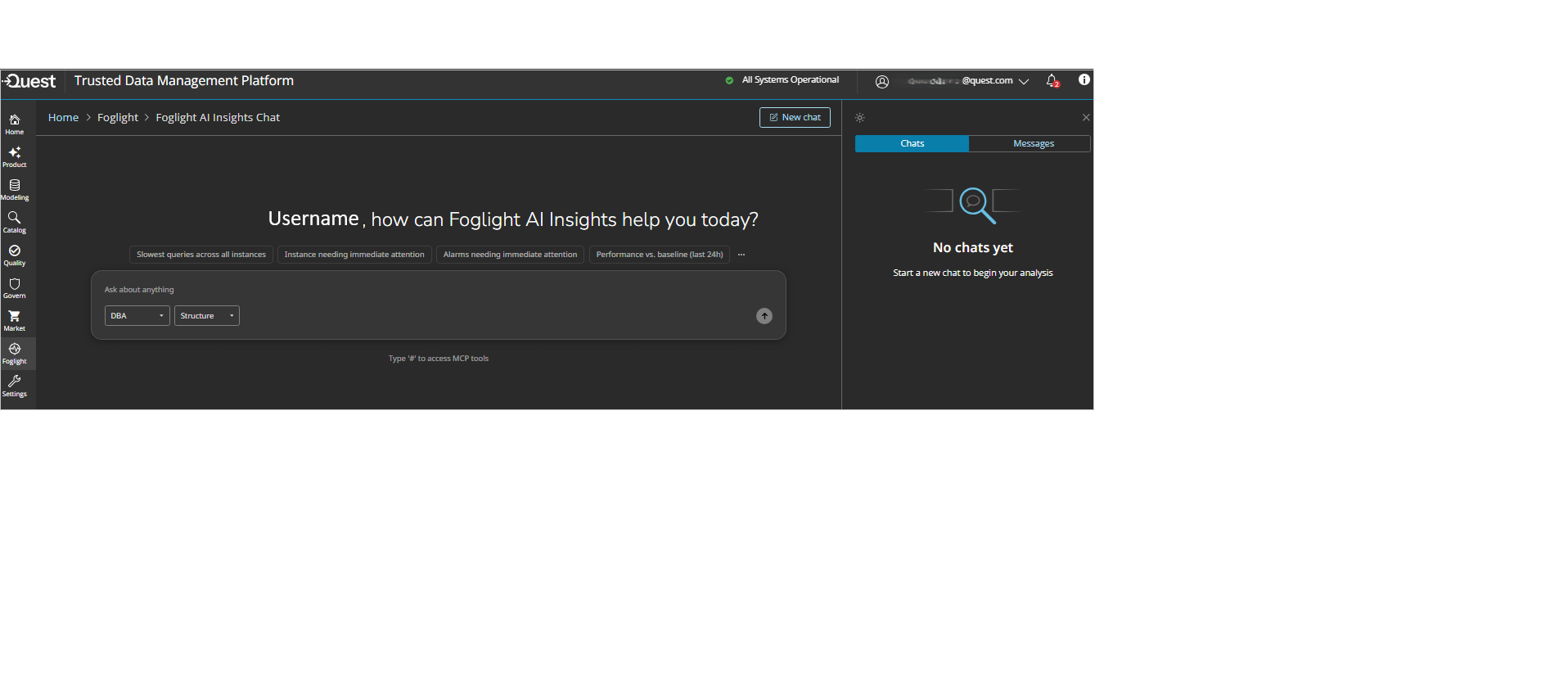
To use AI Insights Chat, you must first configure at least one MCP server. See Adding MCP Server for setup instructions.
Chat Interface Overview
The screenshot above shows the key interface elements of the AI Insights Chat. Each numbered section is described in detail below.
1. Left Chat Panel
The Left Chat Panel is your main conversation area for interacting with Foglight AI Insights.
The Left Chat Panel contains your chat history, message threads, and query input area. Use it to start new conversations, view past chats, and compose your questions to the AI.
Chats Tab — View and manage your conversation sessions
- Displays a list of all your active and previous chat sessions
- Click on any chat to switch between conversations
- Each chat maintains its own conversation history
- Maximum of 2 active chats at a time
Messages Tab — Browse all your queries and responses
- View a comprehensive log of all your questions and AI responses
- Search through previous conversations across all chats
- Easily find and reference past insights and discussions
Query Input Field and New Chat Button
- Query Input Field — Type your questions and queries to ask Foglight AI Insights
- New Chat Button — Click to start a brand new conversation
- Type your question and click Enter to submit
2. Role and Structure Dropdown
Customize how the AI responds to your questions and how results are displayed.
The Role and Output Format dropdowns let you control how Foglight AI Insights responds to your queries. Select a role that matches your perspective (Executive, DBA, or SRE) and choose your preferred output format (Structure or Markdown).
Role Dropdown — Select your perspective for AI responses
Choose the role that best matches your responsibilities:
- Executive — Provides high-level insights and business-focused perspectives on database and infrastructure performance
- DBA — Delivers detailed technical information relevant to database administrators, including performance metrics and configuration details
- SRE — Focuses on reliability and operational aspects from a Site Reliability Engineer perspective
Selecting a role helps Foglight AI Insights tailor responses to your specific needs. See Understanding Roles for more details.
Output Format Dropdown — Choose how results are displayed
Select the format that best suits your needs:
- Structure — Displays results in tabular format for easy comparison and analysis
- Markdown — Displays results in formatted text with better readability for narratives and explanations
3. Right Panel & Theme Selector
The Right Panel provides navigation between your chats and messages, plus theme customization options.
The Right Panel shows your chat list and message history for quick navigation between conversations. Use the Theme Toggle to switch between dark and light display modes based on your preference and environment.
Chats Navigation — Access your conversation list
- View a list of all your active chat sessions
- Click any chat to quickly switch between conversations
- Organize and manage multiple discussions
- Easily resume previous conversations
Messages Navigation — Browse conversation history
- View all messages in the current chat session
- Scroll through your question history and AI responses
- Reference previous insights and recommendations
Theme Toggle — Switch between dark and light themes
- Click the theme toggle button
 in the top-right corner to switch between display modes. Your preference is automatically saved for future sessions
Understanding Roles
The Role dropdown allows you to select a perspective that customizes how Foglight AI Insights tailors its responses. Available roles include:
- Executive - Provides high-level insights and business-focused perspectives on your database and infrastructure performance
- DBA - Delivers detailed technical information relevant to database administrators, including performance metrics and configuration details
- SRE - Focuses on reliability and operational aspects from a Site Reliability Engineer perspective
Selecting a role helps the AI understand your context and provide more relevant recommendations and insights tailored to your needs.
Starting a New Chat
- Click New Chat button at the top.
- Select your Role and Output Format from the dropdowns.
- Type your question in the input field.
- Click Enter to submit.
You can create up to 2 active chats at a time, with a maximum of 10 total chats stored in your account.
Asking Questions
- Type your question in the input field.
- Select Role (Executive, DBA, or SRE) for context.
- Select Output Format (Structure or Markdown) for presentation style.
- Click Enter to submit.
- Foglight AI Insights analyzes your query and provides insights.
Accessing MCP Tools
At the bottom of the chat interface, you will see: Type ‘#’ to focus your queries
The # command allows you to use shortcuts that focus your queries:
- Use
#followed by a shortcut name to narrow the scope of your analysis - Focus queries on specific areas or tools available from your configured servers
- Combine shortcuts for more targeted and precise queries
Using Query Shortcuts
When you type # in the query input field, available shortcuts from your configured servers will be displayed. Select a shortcut to focus your query for more targeted analysis.

